
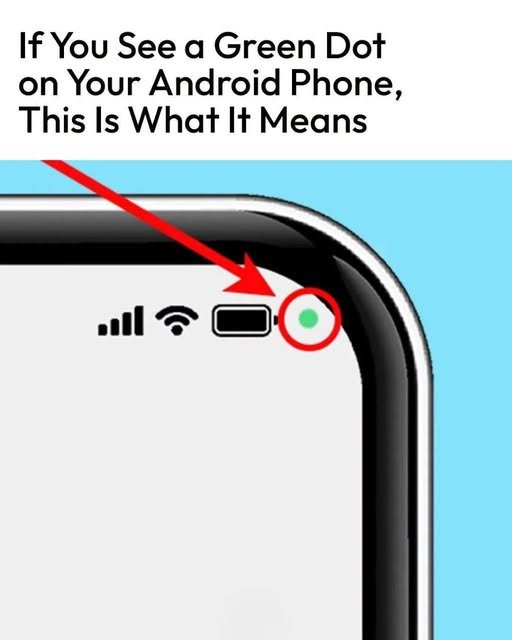
That tiny green dot at the top of your Android screen is a privacy indicator, and it’s actually a very important visual cue. It was introduced in Android 12 and has been standard ever since.
In short: The green dot means an app is currently using your phone’s camera or microphone.
It’s a simple, at-a-glance way to know if an app could be watching or listening. Here’s exactly what it’s telling you and how to check it.
What the Icons Mean
You might see a few different icons appear briefly or stay on in the top right corner of your screen (near the battery and signal bars):
-
Green Dot: An app is actively using the camera right now, or the camera and the microphone together.
-
Camera Icon (Green): The camera is in use.
-
Microphone Icon (Green): The microphone is in use.
These icons aren’t just for apps you’ve opened. For example, you might see it pop up briefly when you use “Hey Google,” or when an app takes a photo in the background.
How to See Exactly Which App Used It
If you see the dot and you’re not sure which app triggered it, you can find out immediately:
-
Swipe down from the top of your screen to open the notification shade.
-
You’ll see a persistent notification or a small chip/bubble at the top that says something like “Camera in use by [App Name]” or “Microphone in use by [App Name].”
-
Tap on that notification. It will take you directly to that app’s permissions in your Settings.
From there, you can immediately revoke the app’s Camera or Microphone permission if the access is unexpected.
This Is Not a Spyware Warning (Usually)
Seeing the green dot flash on when you open Instagram, Snapchat, Zoom, or your Camera app is completely normal. It means Android’s system is working to alert you. The dot is meant to catch the use you don’t expect.
What If You See It When You Shouldn’t?
If the green dot appears when you’re not doing anything that should need the camera or mic, it’s time to investigate:
-
Recent Apps: Close your apps one by one. If the dot disappears after closing a specific app, that was the culprit. It might have a feature that activates the microphone in the background (a video recording feature, “hands-free” mode, or a poorly designed ad).
-
Check the Permission Manager: Go to Settings > Privacy > Permission Manager. Here you can see a full list of apps with Camera or Mic access and revoke them permanently if needed.
-
A Note on Accessibility: If you use any Accessibility Services, the green dot can sometimes flash briefly, but it shouldn’t stay on.
Quick Tip: The dot itself cannot be permanently disabled in the core Android settings, as it’s a mandatory security feature. If the dot is constantly appearing and you’ve identified the app, the safest route is to uninstall that app, or go into its app permissions and set “Camera” and “Microphone” to “Deny” or “Ask every time.”
Let me know if you’re seeing the dot at a specific, suspicious time and I can help you dig deeper into what might be causing it.